Quick Answer
To add page numbers to a PDF online, upload your file into the PDF AI page numbering tool, choose your preferred position (like bottom-right), select a numbering format (e.g., 'Page 1 of 10'), apply the changes, and securely download your perfectly paginated document for free.
Whether you're submitting a 50-page university thesis, handing over a complex legal contract, or preparing a quarterly business report, missing page numbers are a huge red flag. Without proper pagination, reviewing physical printouts or digital documents becomes incredibly frustrating.
Table of Contents
If you forgot to insert page numbers in PDF format before exporting your file from Microsoft Word or Google Docs, don't panic. You don't have to convert the file back to a text document just to add numbers. A pdf page numbering tool lets you apply customizable digits directly over your existing pages in seconds.
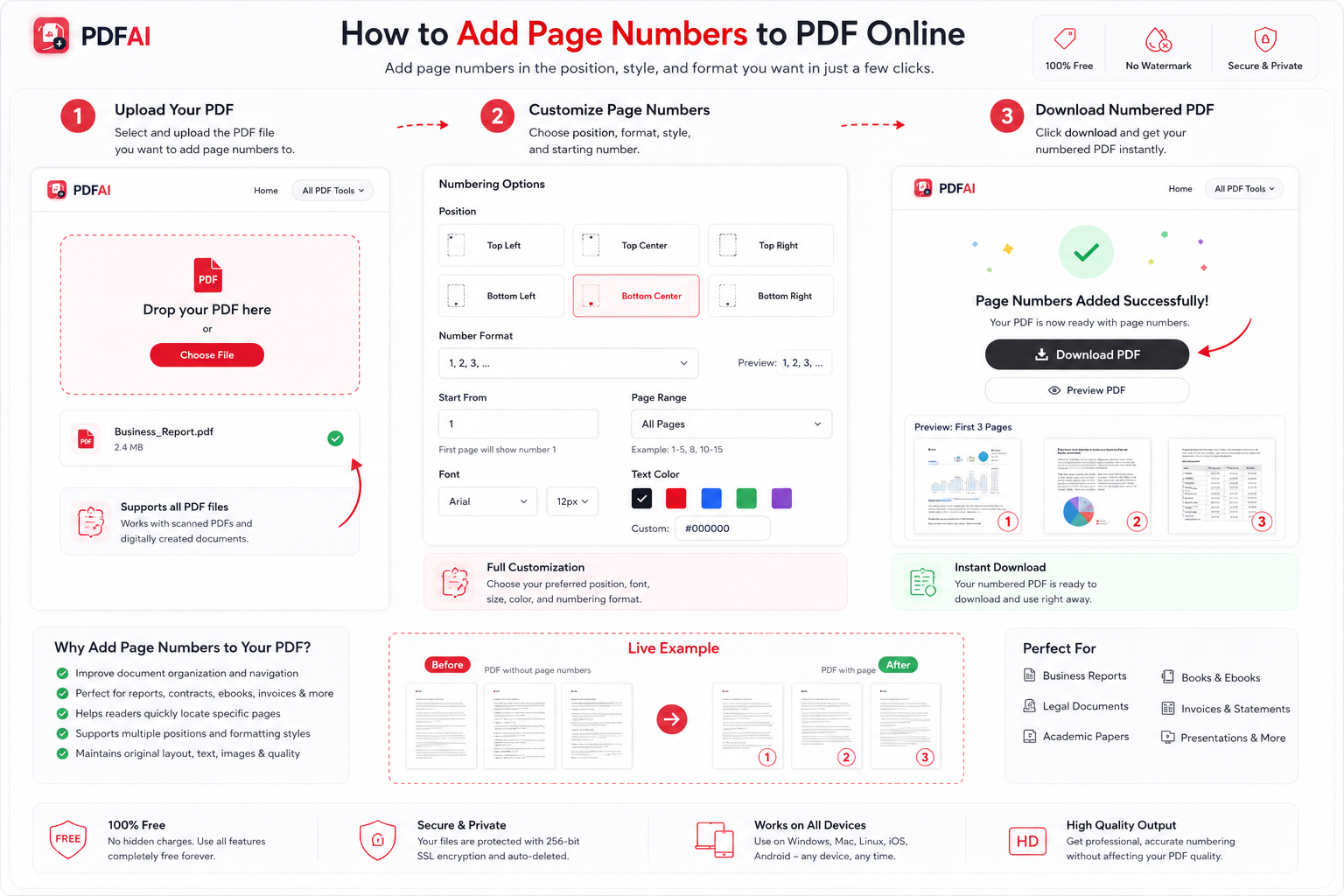
Step-by-step guide showing how to securely upload a PDF, customize page number positions and typography, and download the numbered document.
Why You Need to Number PDF Pages Online
Skipping pagination might seem like a minor oversight, but it causes massive headaches for readers. Here is why you must paginate pdf files before sending them out:
- Improves Navigation: Helps readers, clients, or professors quickly locate specific sections or reference points during discussions.
- Prevents Printing Chaos: If someone drops a 50-page printed document without numbers, it is nearly impossible to put it back together in the correct order.
- Maintains Original Layout: Our tool securely layers the text clearly over your pages without altering your original text, margins, or embedded images.
Who Needs PDF Page Numbers?
If you are creating professional content, you likely need pagination. Here are the most common scenarios where our users utilize our platform to add page numbers to pdf online:
Comparison: Unnumbered vs Numbered Documents
Here is why an unnumbered document fails in a professional environment:
| Aspect | Without Page Numbers | With Page Numbers |
|---|---|---|
| Navigation Speed | ||
| Professionalism | ||
| Printing Experience | ||
| Reviewing & Editing |
Understanding Your Customization Options
A good utility doesn't just slap a plain '1' on the top left corner and call it a day. Our tool gives you complete, granular control over how and where your text appears. Here is exactly what you can customize when you add page numbers to scanned pdf or digital files:
- Positioning: Place numbers exactly where they look best without overlapping your text. Choose from Top Left, Top Center, Top Right, Bottom Left, Bottom Center, or Bottom Right.
- Number Format: Select the style that suits your document's tone. Go with a basic Plain Number (1, 2, 3), use the Page N format (Page 1), or show total context with the N of M format (Page 1 of 10).
- Typography & Style: Adjust the font family (e.g., Arial, Times New Roman) and font size to match your document's existing styling. Make them bold or italicized for emphasis.
- Text Color: Standard black (#000000) is the default, but you can select predefined colors or enter your own custom HEX code to match your company's branding.
- Start Numbering From: Skipping a cover page or an index? You can easily set your desired starting number. If you apply numbering starting from the third page but set the value to '1', that third page will clearly display 'Page 1'.
- Page Range: You do not have to number the entire document. Set specific page ranges (Example: 1-5, 8, 10-15) to only target exactly what you need.
Paginate your PDF in 10 seconds
Upload your document, tweak the typography, and insert fully customizable page numbers for free without any watermarks.
Add Page Numbers NowHow to Number Your Pages Online – Step by Step
You can number pdf pages online securely right from your web browser without installing heavy software.
Data Security & File Privacy
What To Do Next
Once your pages are perfectly numbered, you might need to finalize your document for submission. Check out our other free utilities:
Frequently Asked Questions (FAQ)
Can I add page numbers to PDF online free?
Yes! Our pagination tool is 100% free to use. There are no hidden fees, no software installations required, and we never place our own watermarks or branding on your finished document.
Can I start numbering from page 3?
Absolutely. If your document has a cover page and a table of contents, you can set the "Page Range" to begin at page 3. You can also tell the tool to label that third page as "Page 1".
Can I skip cover pages?
Yes. Using the custom range setting (e.g., entering "2-20"), you can easily instruct the system to completely ignore the first cover page of your document.
Can I add page numbers to scanned PDFs?
Yes. Even if your PDF is entirely made up of scanned images rather than digital text, our tool will seamlessly overlay the new page numbers on top of the images exactly where you position them.
Will adding numbers affect my existing formatting?
No. The text is added as a new layer over the existing content. It will not shift your paragraphs, alter your margins, or compress your original image resolution.
Can I choose custom colors for the numbers?
Yes. While standard black is the default, our customization panel allows you to pick specific colors or enter an exact HEX code to match your corporate branding or school guidelines.
Can I add page numbers on my mobile phone?
Yes, PDF AI is fully responsive. You can open Safari or Chrome on your iPhone or Android device, upload the PDF, adjust the settings using your touchscreen, and download the file instantly.
Is PDF AI secure?
Yes. Your privacy is paramount. Files are transmitted securely via AES encryption, and your original and processed documents are automatically removed from our servers after your session is complete.